Platform / Website voice
An AI voice widget
for your website.
Add a call button to your website. Visitors tap it and talk to your AI agent right in the browser. No app, no phone number. You control the branding, access and call limits.
Updated
Web Talk / Website voice
Let visitors talk
to your AI agent.
Add a short script to your website to show the AI call button. Visitors can ask questions by voice without leaving the page. They need a supported browser and microphone access.
- Match your website. Set the button’s logo, colours and position. Place it around other website widgets.
- Manage calls in one place. Website calls appear beside phone calls. Approved staff can listen, take over and check usage.
- Control access and usage. Approve website domains and set call limits. You can also ask for consent and add bot checks.
- 01A visitor taps your call button.
They choose to start and allow microphone access.
- 02Your AI agent answers.
The visitor speaks and hears replies in the browser.
- 03Your team can help.
Approved staff can monitor or take over in Live Operations.
Web Talk requirements and controls
See the product
Set up your website call button.
Choose the AI agent for Web Talk. Set website access, button appearance and call limits.
Real product screen with sample data. Controls depend on your role and setup.
View the console tour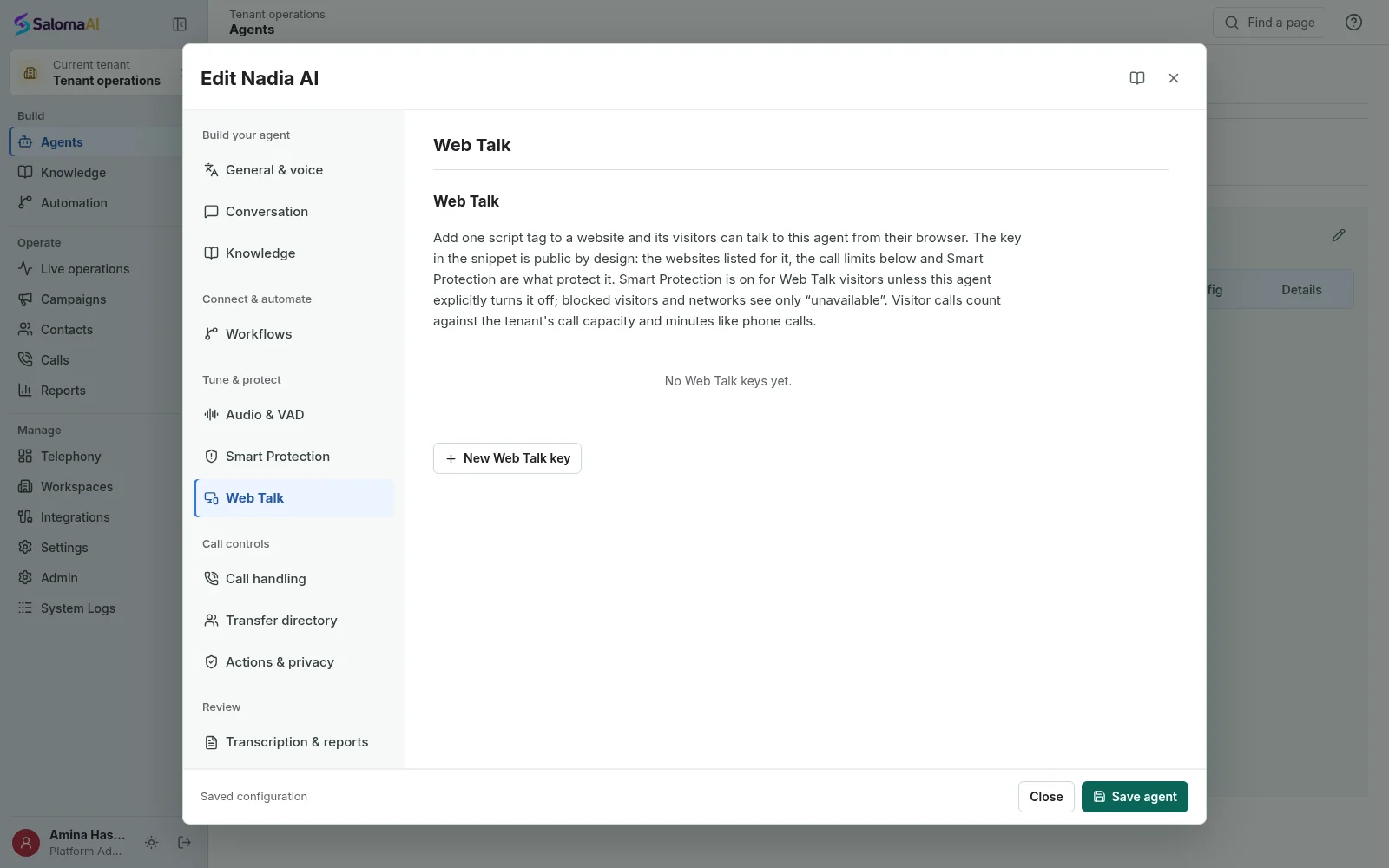
Recorded voice demo
Hear how the
AI agent sounds.
The Hope Clinic recording is an example of an AI enquiry. It is not a customer case study. You do not need a microphone to play it.
Hope Clinic Demo
Hear Saloma handle a clinic enquiry from start to finish. A recorded demo, not a customer case study.
Having trouble? Open the audio sample.
Ready when you are
Let Saloma answer
your next call.
Tell us how your calls work today. We will show you Saloma handling them, in your languages and with your tools.
Can’t wait? Tap the green call button and talk to Saloma now.
Already a customer? Sign in to manage your agents and calls.